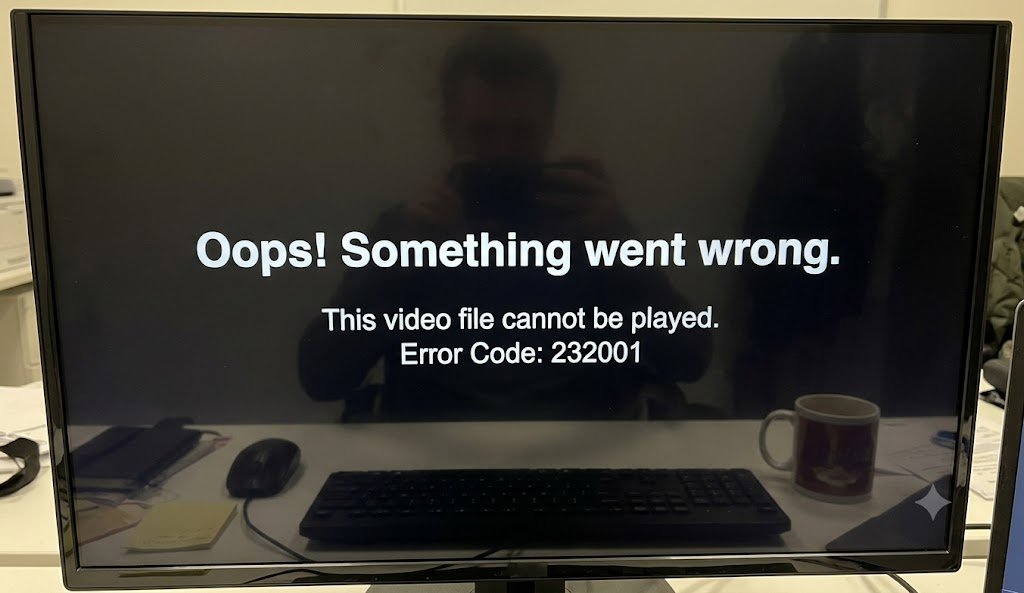

If you’ve encountered error code 232001, you’re not alone. This frustrating playback error typically appears when trying to stream videos on websites that use HTML5-based video players. Instead of loading your content, the player displays a message indicating that the video cannot be played.
The good news? In most cases, error code 232001 isn’t caused by permanent damage to your device. It usually stems from browser issues, corrupted cache, network interruptions, incompatible extensions, outdated software, or temporary server-side problems. This guide explains exactly what causes the error, how to fix it, and how to prevent it from happening again.
What Is Error Code 232001?
Error code 232001 is a video playback error commonly associated with HTML5 video players. Rather than pointing to one specific problem, it serves as a general indicator that the browser failed to load or play a streaming video.
Depending on the website, you may see messages like:
- This video file cannot be played. (Error Code: 232001)
- Playback failed
- Video unavailable
- Unable to load media
Although the wording differs, the underlying issue is usually related to communication between your browser, the streaming platform, and the server hosting the video.
Why Does Error Code 232001 Appear?
Several different issues can trigger error code 232001, which is why diagnosing the exact cause is important.
1. Corrupted Browser Cache
Browsers store temporary files to speed up websites. Over time, these cached files may become outdated or corrupted, preventing videos from loading correctly.
Common signs include:
- Videos worked previously
- Only certain websites fail
- Refreshing doesn’t solve the problem
2. Outdated Browser Version
Modern streaming platforms continuously update their video technology. An outdated browser may lack support for newer codecs, security protocols, or DRM features.
Older browser versions often experience:
- Playback failures
- Black screens
- Audio without video
- Random loading errors
3. Internet Connection Problems
A weak or unstable internet connection is one of the leading causes of error code 232001.
Potential network issues include:
- High latency
- Packet loss
- Slow download speeds
- Frequent Wi-Fi disconnects
Even if web pages load normally, video streaming requires consistent bandwidth.
4. Browser Extensions Blocking Video
Extensions designed for privacy or advertising control can accidentally interfere with video players.
Examples include:
- Ad blockers
- Script blockers
- Privacy protection tools
- VPN browser extensions
- Cookie management plugins
Many streaming websites rely on JavaScript, cookies, and third-party resources that these extensions may block.
5. Hardware Acceleration Conflicts
Hardware acceleration shifts video processing from the CPU to the GPU.
While this usually improves performance, incompatible graphics drivers or browser bugs can trigger error code 232001 during playback.
6. Corrupted Cookies
Cookies store authentication information for streaming sessions.
When cookies become corrupted, the player may fail to verify your session correctly, resulting in playback errors.
7. Website or Server Problems
Sometimes the issue isn’t on your end.
Streaming servers occasionally experience:
- Maintenance
- CDN outages
- Regional routing issues
- Temporary overload
In these cases, the only solution is waiting until the service restores normal operation.
How to Fix Error Code 232001
Work through the following solutions in order. Most users resolve the problem within a few minutes.
Refresh the Web Page
Start with the simplest fix.
A fresh page reload can restore interrupted requests between your browser and the video server.
Try:
- Press Ctrl + F5 (Windows)
- Press Cmd + Shift + R (Mac)
- Reload the page normally
Clear Browser Cache and Cookies
Deleting cached files forces the browser to download fresh resources.
Steps:
- Open browser settings.
- Navigate to Privacy.
- Select Clear Browsing Data.
- Choose:
- Cached Images
- Cookies
- Site Data
- Restart the browser.
This solution resolves many instances of error code 232001 caused by corrupted local data.
Update Your Browser
Running the latest browser version ensures compatibility with modern streaming technologies.
Supported browsers include:
- Google Chrome
- Microsoft Edge
- Mozilla Firefox
- Safari
- Opera
Updating also installs important security patches and media playback improvements.
Disable Browser Extensions
Open a private browsing window.
If videos work there, an extension is likely causing the problem.
Disable extensions one by one, paying special attention to:
- Ad blockers
- Script blockers
- VPN tools
- Privacy extensions
Check Your Internet Connection
Run an internet speed test.
For reliable HD streaming, aim for:
- 5 Mbps minimum for HD
- 25 Mbps for 4K content
If speeds fluctuate:
- Restart your router.
- Move closer to Wi-Fi.
- Use Ethernet instead of wireless.
- Disconnect unused devices.
Turn Off Hardware Acceleration
If your graphics driver conflicts with browser rendering:
- Open browser settings.
- Search for Hardware Acceleration.
- Disable it.
- Restart the browser.
Many users report smoother playback after changing this setting.
Try Another Browser
If error code 232001 appears in only one browser, the problem is likely browser-specific.
Testing another browser helps isolate:
- Extension conflicts
- Browser corruption
- Profile issues
- Compatibility problems
Restart Your Device
A full restart clears:
- Temporary memory
- Background browser processes
- Network cache
- Hung GPU drivers
Although simple, this fix is surprisingly effective.
Flush DNS Cache
DNS problems sometimes prevent browsers from locating streaming servers efficiently.
On Windows:
ipconfig /flushdnsRestart your browser afterward.
Disable VPN or Proxy
VPN services occasionally route traffic through congested or blocked servers.
Temporarily disable:
- VPN software
- Browser VPN extensions
- Proxy servers
Then reload the video.
Reset Browser Settings
If nothing else works, restore browser settings to default.
This removes:
- Modified configurations
- Faulty startup settings
- Experimental flags
Your bookmarks generally remain intact.
Advanced Fixes for Persistent Error Code 232001
If the basic solutions fail, consider these advanced troubleshooting methods.
Update Graphics Drivers
Old GPU drivers can affect video decoding.
Update drivers for:
- NVIDIA
- AMD
- Intel Graphics
Install only official driver packages.
Disable Antivirus Web Filtering
Some antivirus programs inspect encrypted web traffic.
Temporarily disable:
- HTTPS scanning
- Web Shield
- Safe Browsing filters
If playback resumes, add the streaming website to the software’s exclusions.
Reset Network Settings
Network corruption can interfere with streaming.
Windows users can reset networking via:
Settings → Network → Advanced Network Reset
Reconnect afterward.
Check Firewall Rules
Corporate networks or strict firewalls may block required streaming ports.
Ensure your firewall isn’t blocking browser traffic.
How to Prevent Error Code 232001
Preventive maintenance significantly reduces playback errors.
Follow these best practices:
- Keep browsers updated
- Clear cache regularly
- Restart your router occasionally
- Avoid installing unnecessary extensions
- Update graphics drivers
- Use reliable internet
- Maintain enough free storage
- Restart your computer weekly
These simple habits improve overall browser performance.
Does Error Code 232001 Mean the Video Is Broken?
No.
Most of the time, error code 232001 indicates a communication issue between your browser and the streaming service—not a damaged video file.
The original media usually remains intact.
Can Mobile Devices Experience Error Code 232001?
Yes.
Android and iPhone users may encounter the same playback error.
Possible causes include:
- Mobile browser cache
- Weak cellular connection
- VPN apps
- Outdated browser versions
- Corrupted cookies
Most desktop troubleshooting methods also apply to mobile devices.
When Should You Contact Website Support?
If every troubleshooting step fails, contact the streaming platform.
Include:
- Browser version
- Device type
- Operating system
- Screenshot of the error
- Time the problem occurred
- Website URL
Providing detailed information helps support teams diagnose server-side issues faster.
Frequently Asked Questions (FAQ)
What does error code 232001 mean?
Error code 232001 generally means your browser cannot load or play a streaming video due to browser issues, network problems, incompatible extensions, corrupted cache, or temporary server outages.
How do I fix error code 232001 quickly?
Start by refreshing the page, clearing your browser cache and cookies, updating your browser, checking your internet connection, and disabling browser extensions. These steps resolve the majority of cases.
Can a VPN cause error code 232001?
Yes. VPNs can interfere with video delivery by routing traffic through congested, blocked, or incompatible servers. Disabling the VPN temporarily can help determine whether it’s the source of the problem.
Is error code 232001 caused by my internet connection?
Often, yes. Slow speeds, unstable Wi-Fi, packet loss, or intermittent connectivity can interrupt video playback and trigger error code 232001, especially during HD or 4K streaming.
Why does error code 232001 appear on only one website?
If the error occurs on a single website, the issue may be related to that site’s server, content delivery network (CDN), authentication system, or browser compatibility. Testing the same video in another browser or waiting a while can help determine whether the problem is temporary.
Final Thoughts
Encountering error code 232001 can be frustrating, but it is usually fixable with a systematic approach. Begin with the simplest solutions—refreshing the page, clearing cached data, and updating your browser—before moving on to more advanced troubleshooting such as checking extensions, updating graphics drivers, or resetting network settings. If the problem persists across multiple devices and browsers, it’s likely a server-side issue that requires attention from the streaming provider. By following the steps outlined above and adopting good browser maintenance habits, you can minimize future playback interruptions and enjoy a smoother streaming experience.